Intro to workspaces
Workspace basics
Your dicehub app interface is split into two sections: the sidebar and the editor.
Sidebar
- dicehub's expandable sidebar is your navigation system.
- All the pages and databases you create will appear here.
- The sidebar contains several sections, which you can reorder and customize.
- You can nest pages inside each other for infinite levels of organization.
- It's also home to your settings, trash, and other tools.
Learn more about your sidebar in this article →
Editor
- This is where all the content you create lives.
- Control menus are at the top (we'll go through those in more detail), but otherwise, dicehub's editor is a blank canvas for you to write, plan, brainstorm, and more.
- You'll notice that as soon as you start typing in this space, those top menus fade into the background, leaving you with your thoughts in a spacious zone of focus.
Sidebar tools
Control panel
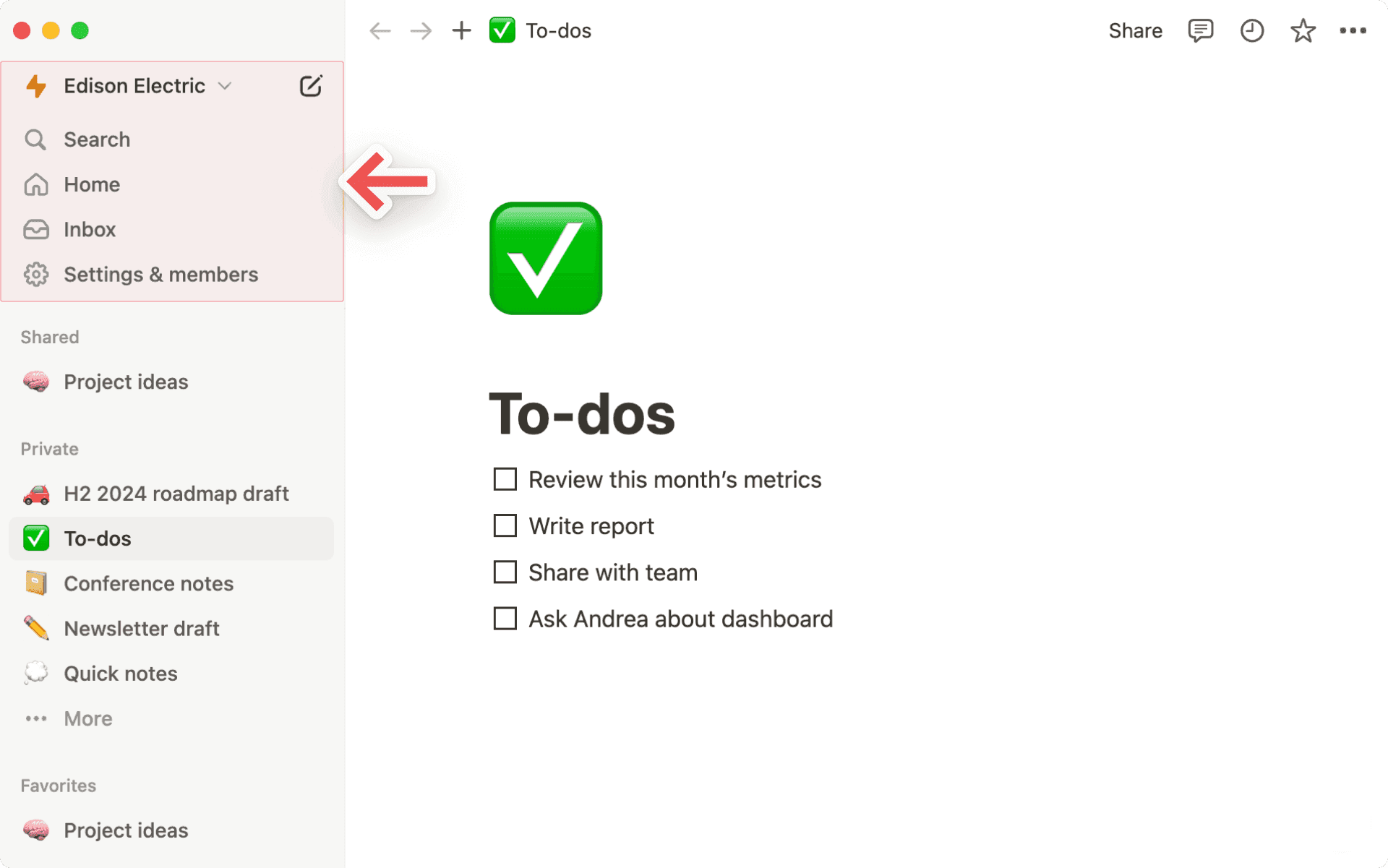
The control panel at the top of your sidebar contains several key features:
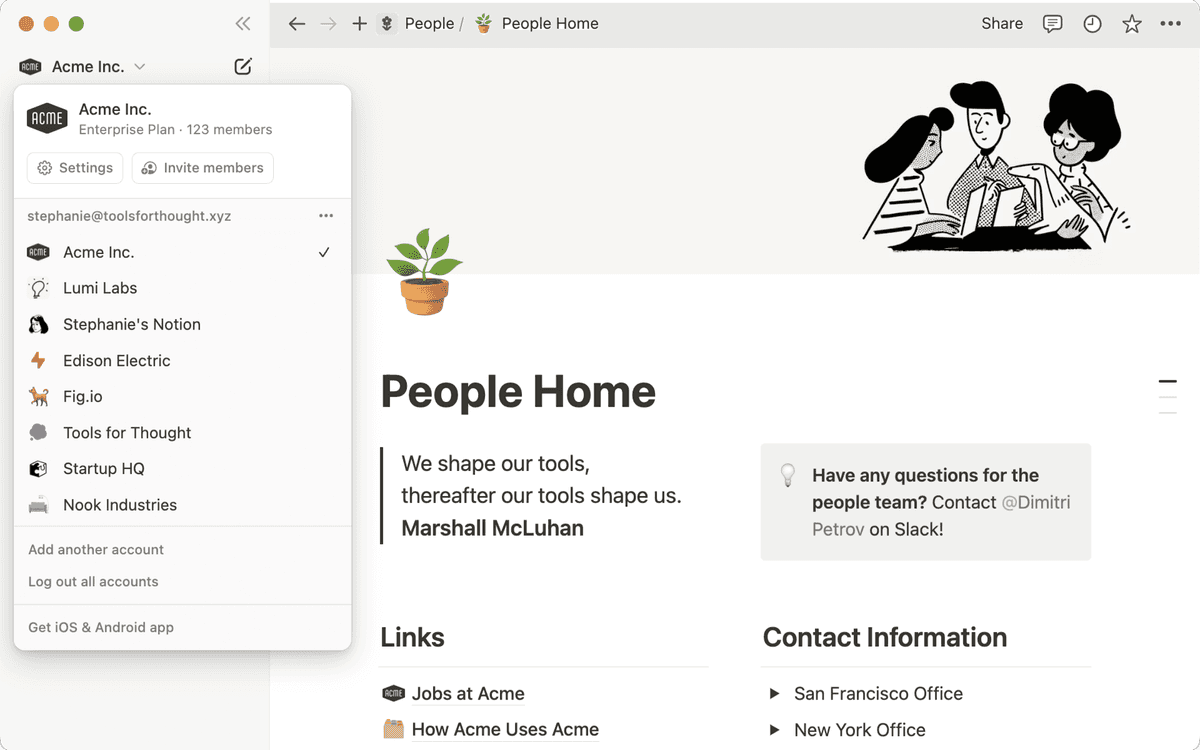
- Workspace switcher: Click on your current workspace's name to switch between the workspaces you belong to, create a new one, join another one, or log out. You can also access your settings from inside the workspace switcher. Learn more about switching workspaces here →
- Search: Click to open dicehub's search window, where you can either type in what you're looking for or quickly jump to a recently visited page. Learn more about Search here →
- Home: Click to see the pages and tasks that need your attention. Learn more about Home here →
- Inbox: Click to see all your notifications in one place. This menu combines revisions that were made on pages you follow, mentions of you across your workspace, and new work assignments. A red notification badge will appear here when you have unread notifications. Learn more about inbox here →
Sidebar sections
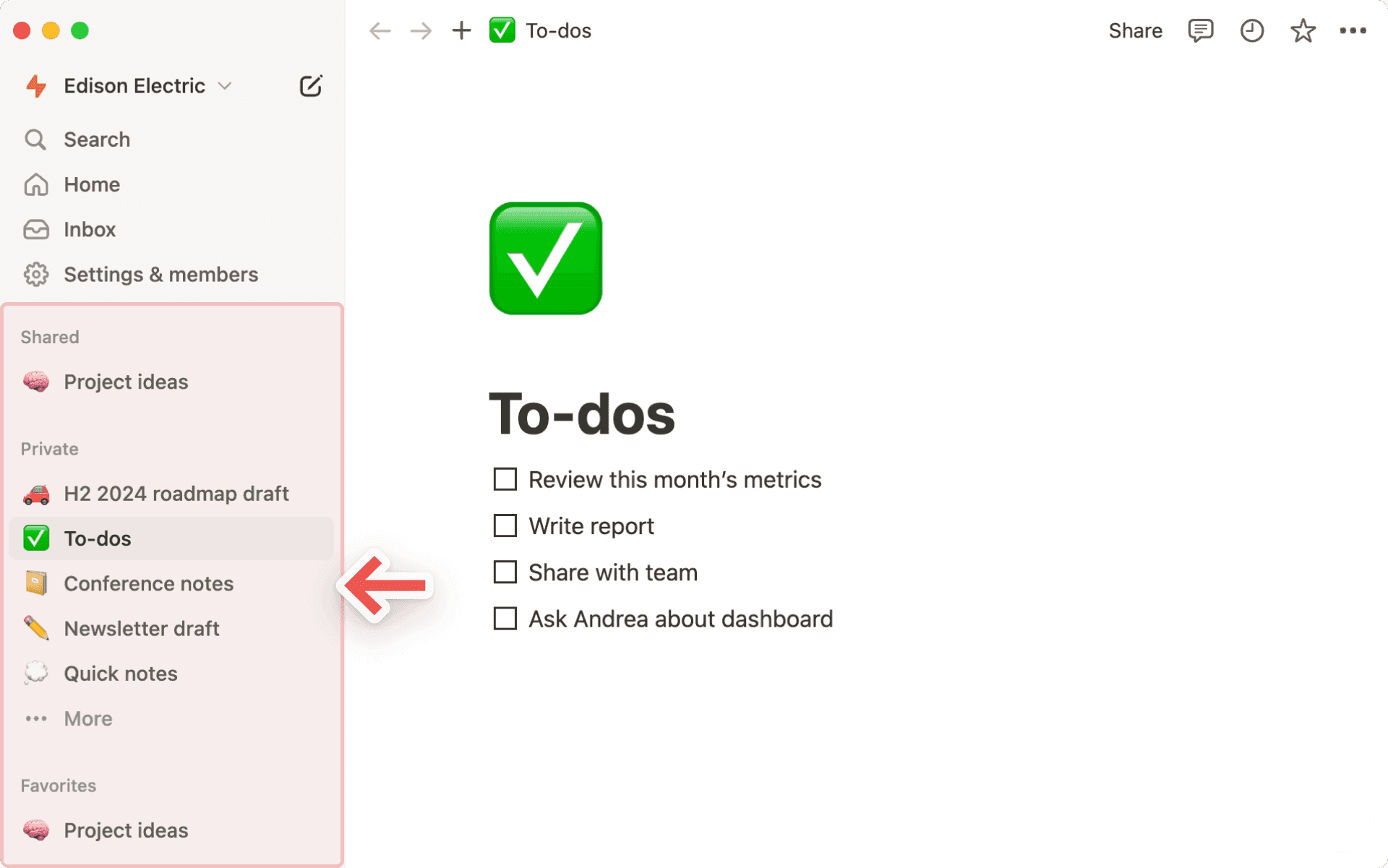
Your sidebar contains various sections to keep your workspace’s content organized:
- Teamspace: This section is accessible for users on paid plans to manage the various teams or groups that may be working in dicehub. Learn more about teamspaces here →
- Shared: This section contains pages that you and select others in your workspace have access to.
- Private: This section is home to pages that only you have access to.
- Favorites: This section houses pages that you’ve favorited so you can reference them easily.
You can rearrange and customize your sidebar sections. Learn how in this article →
Favorites
Favorites is where you can easily access all of the pages most important to you. This section will appear in your sidebar once you favorite your first page.
To add a page to your favorites, navigate to it, then click ⭐ at the top of it. You'll see it appear under Favorites in your sidebar.
To remove a page from your favorites, open it and unclick ⭐ at the top. You can also hover over the page in your sidebar and click •••. You'll see the option to Remove from Favorites.
Settings, templates, and trash
- Settings allow you to adjust dicehub to your preference. Learn more about settings here →
- Templates opens our template picker, where you can create a new page using starter content to help you accomplish your goals.
- Trash contains all the pages you delete. You can drag and drop them in here. You can also click on trash to search, view, and restore these pages.
Create a new page
There are a few ways to add a new page in dicehub.
- Click 📝 at the top of your left sidebar.
- If you’re on the desktop app, use the shortcut cmd/ctrl + N.
- If you’re on mobile, tap 📝 at the bottom of your screen.
Hover options
When you hover over a page in your sidebar, you'll see both a + button to add a page nested inside it, and a ••• icon, which opens a menu of actions you can apply to the page: Delete, Duplicate, Copy link, Rename, and Move to.
Editor tools
Breadcrumb navigation
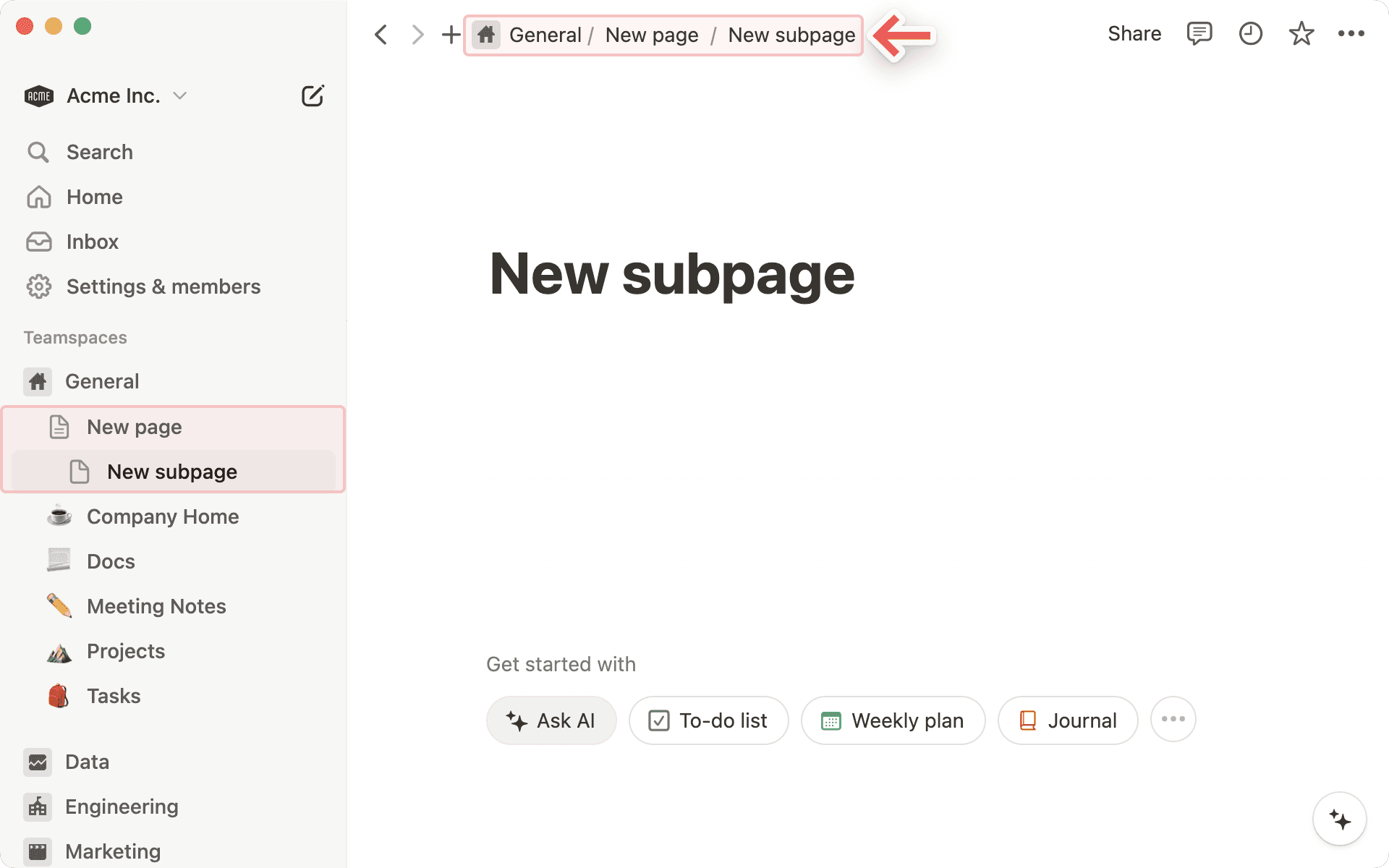
- Always know where you are in respect to your page structure. See how the page you're currently looking at fits into other pages.
- You can click on any page in this breadcrumb to immediately jump to it. Sometimes this will be abridged with a ... — click to view all the pages in between.
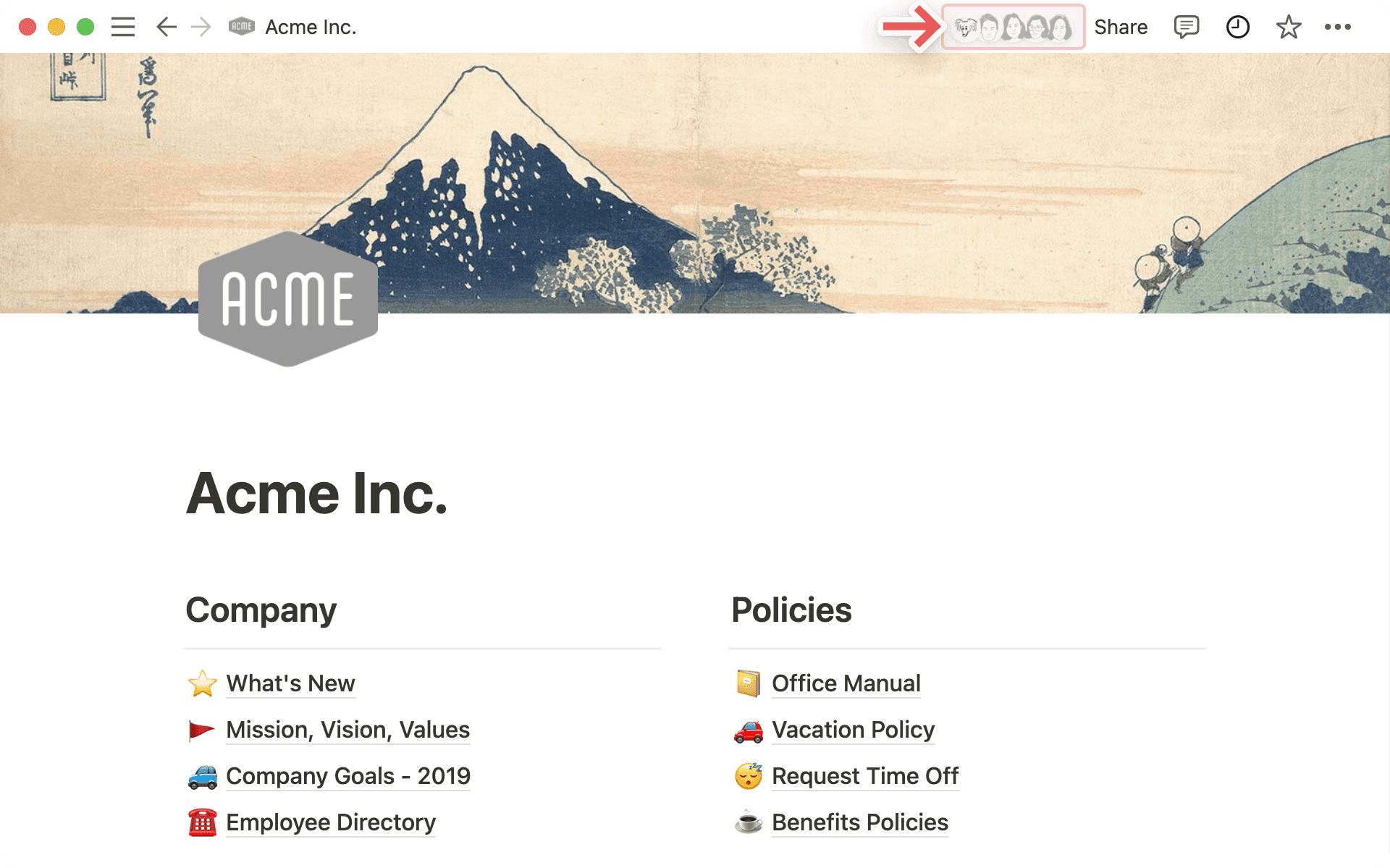
Collaborators
- You can see the profile photos of everyone else who has access to the page you're on. If you hover over any of them, you can see the full list, their names, and email addresses.
- Greyed out avatars are people who are not currently viewing the page but have access to it.
- When you collaborate in real-time on the same content, you can see people's photos moving around, corresponding to the block they're reading or editing.
Share menu
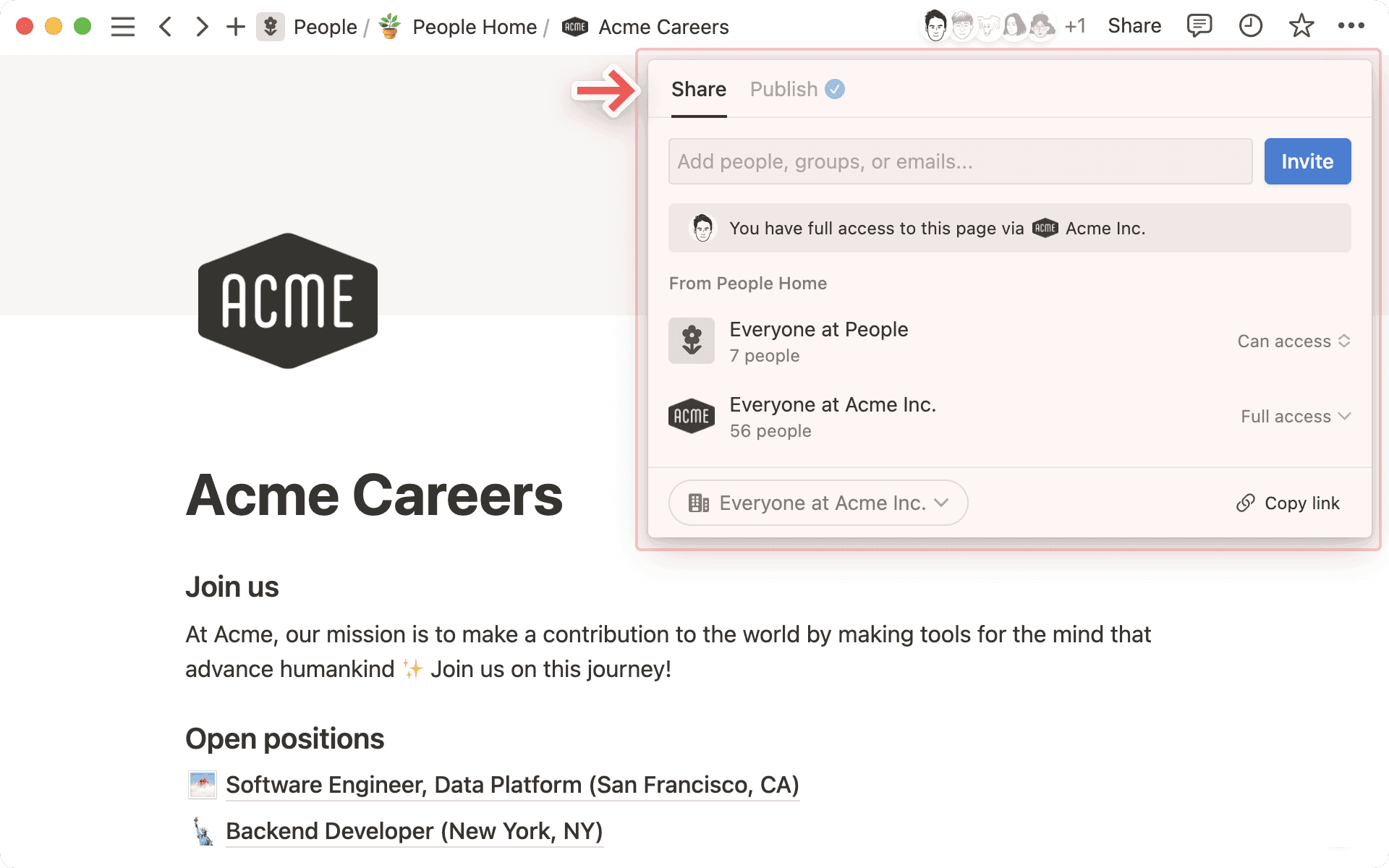
- Each row in this menu represents a different person or group of people you can share the page with. The dropdown menus on the right let you set their level of access. Learn more about permissions here →
- Copy link copies the page's unique URL to your clipboard so you can share it with whoever you want. Still, only people with access to the page can see it.
- Invite lets you add people both inside or outside your workspace to a page using their email address. Learn more about sharing here →
••• menu
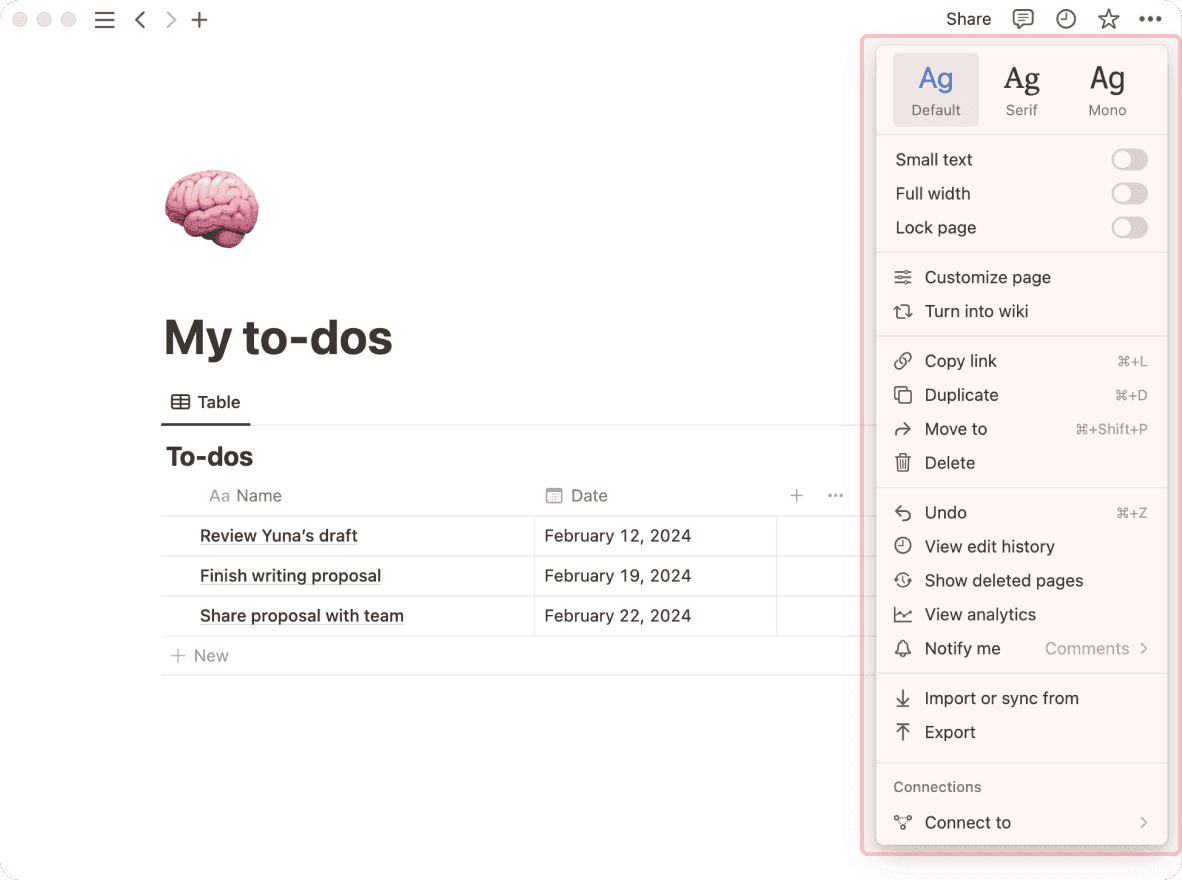
This menu contains many options, including:
- Lock page: Turn this on to prevent any edits from being made. This is good for preventing accidental edits on very important pages.
- Lock database: This option is only available for full page databases. When you turn this on, people can still enter data, but they can’t change views or properties.
- Customize page: Toggle the visibility of backlink and page comment sections.
- Move to: This opens up a menu where you can choose any other workspace or page to move the current page into.
- Updates & analytics: See what changes have been made to a page, how many times the page has been viewed, who created the page, and more.
- Version history: View past versions of the page going back several days, depending on what plan you're on.
- Recover pages: Opens up Trash so you can restore or permanently remove sub-pages you've deleted.
- Import or sync from: You can add documents and data from a number of other apps (Evernote, Trello, Google Docs, etc.) to the page.
- Export: Download the page as a file to your computer. Databases get saved as CSV files, while non-database pages get saved as Markdown files. You can also export your page or database as PDF or HTML.
Help and support
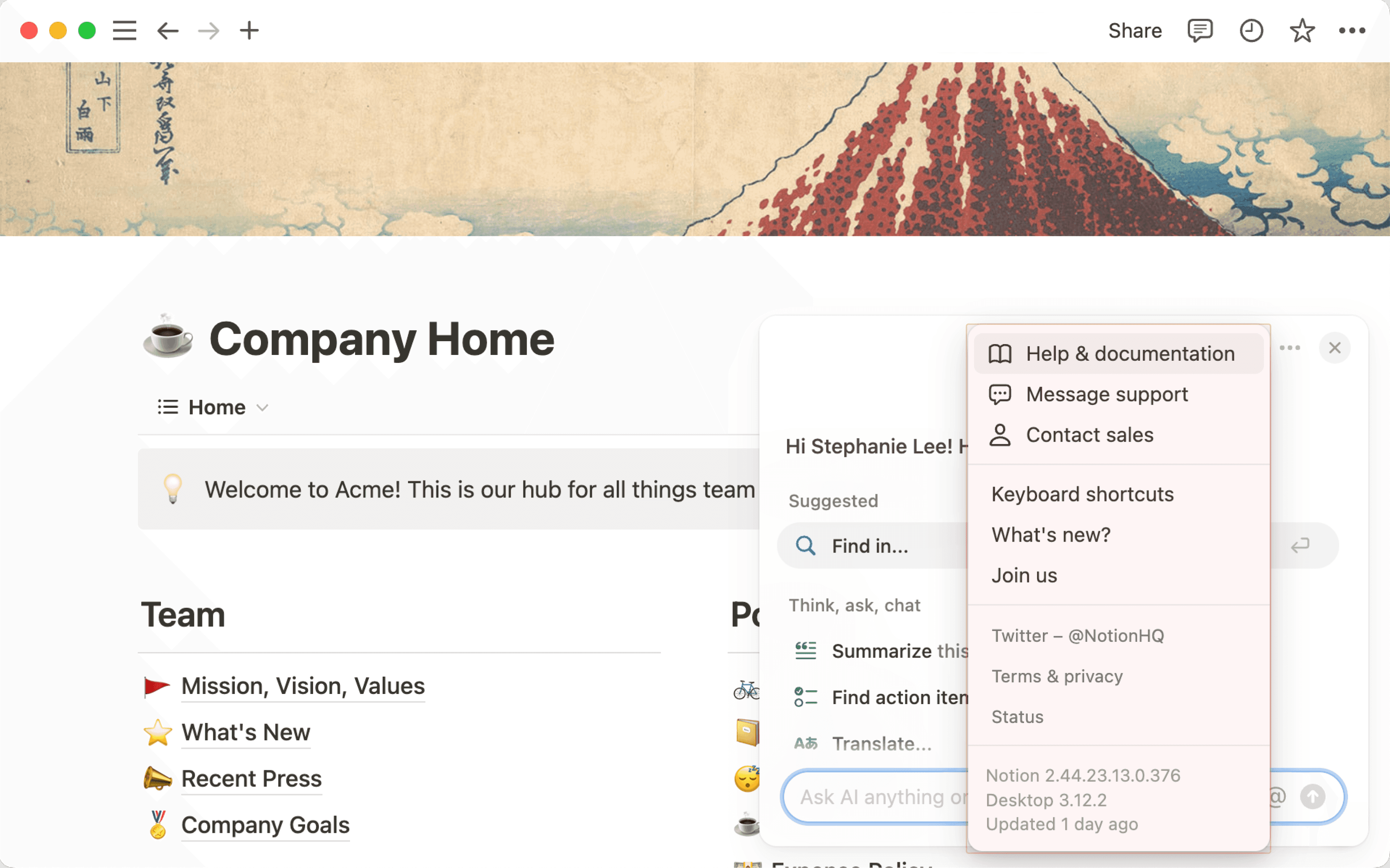
- Click the ✨ at the bottom right of dicehub → ••• → Get dicehub help.
- Help & documentation: Will take you to the Help Center you're reading right now 🤓
- Message support: Lets you send a message directly to our support team from the app.
- Contact sales: Ready to upgrade to Plus, Business, or Enterprise? Let us know!
- Keyboard shortcuts: A shortcut to seeing all our keyboard and Markdown shortcuts.
- What's new?: Release notes for features we've launched, and a peek at upcoming features.
- Join us: Job openings at dicehub — we're always hiring!
Team vs. personal workspaces
A workspace operates slightly differently if you're using it with a team than if you're using it on your own:
- In personal workspaces, newly created pages will be private by default unless they're explicitly shared.
- Sidebar organization under the Teamspace section is also viewable by all members. The page arrangement will look the same to everyone, although individuals can toggle different pages open or closed without affecting everyone's view.
- On dicehub's Plus, Business, or Enterprise Plan, there are members and admins with different levels of permission. Learn more about sharing and permissions here →