Create & manage workspaces
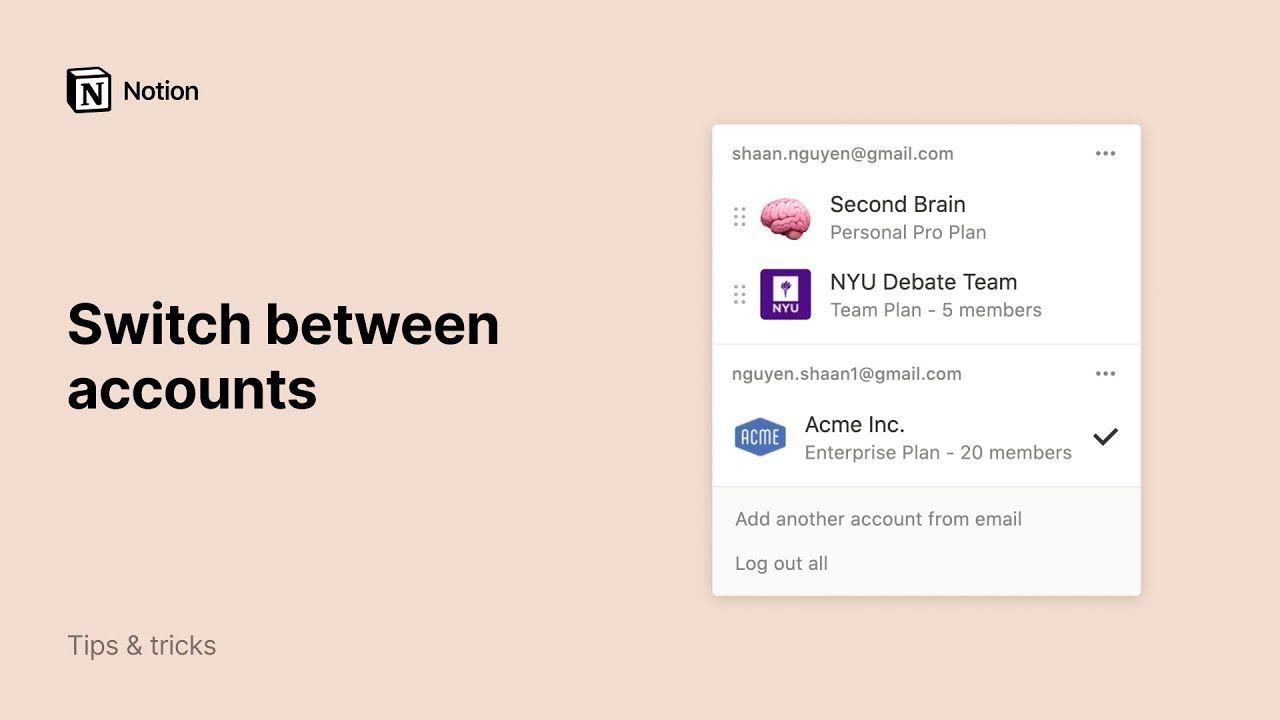
Create a new workspace
By default, your workspace switcher will display all the workspaces associated with your email address. To create another workspace:
- Open the workspace switcher at the top left of your dicehub window.
- Choose which email account you'd like the new workspace to be associated with, and click the ••• to the right of that email address.
- Click Join or create workspace.
- If you're using your work email, you may see a list of workspaces that you can auto-join. We'll cover that just below!
- If you want to create a brand new workspace, scroll past the list of existing workspaces and click Create workspace.
- Follow the steps to set up your new workspace and you're on your way!
Join an existing workspace
There are a couple ways to join a workspace someone else has made:
- An admin from that workspace adds you as a member, and you receive an email with a link to join. You'll be prompted to sign in with your email, and you'll be placed into the workspace as a paid member.
- If your email domain (e.g. name at domain.com) has auto-join enabled, you can use the Join or create workspace button in the workspace switcher, and you'll see a list of workspaces you can join.
Switch between workspaces
Throughout the day, you might need to hop between different workspaces to get things done. Just click on the name of your current workspace and select the one you want to jump to from the dropdown menu. That's it!
You can also access Settings from the workspace switcher.
Leave a workspace
Once you leave a workspace:
- You’ll lose access to all of the content inside it. You might want to export any data that you want to keep after you leave the workspace.
- It’ll be removed from your workspace switcher.
- You can ask an admin to re-add you to the workspace if you want to access it again.
To leave a workspace:
- Go to Settings in your sidebar.
- Select Settings.
- Scroll down to Danger zone and select Leave workspace.
Delete a workspace
Once a workspace is deleted:
- This action is permanent.
- All of the content inside of it will be deleted. You won’t be able to access your content — even your private pages. You might want to export any data that you want to keep after you delete the workspace.
- The deleted workspace will be deleted for everyone in it. This means all users who were part of a workspace before it was deleted will no longer have access to that workspace or any content inside that workspace.
- You'll be returned to another workspace you belong to, or the sign up page for dicehub if you don't belong to any others.
To delete a workspace:
- Go to Settings in your sidebar.
- Select Settings.
- Scroll down to Danger zone and select Delete entire workspace. You'll be asked to type the name of your workspace to confirm you want to proceed.
Add another email account
By default, your workspace switcher will display all the workspaces associated with your email address. But you may prefer to use your personal email with your personal workspaces, and your work email with your team workspaces.
To enable you to view all of your workspaces at once, we support logging in with multiple accounts at the same time!
- To add workspaces from another dicehub account, open the workspace switcher at the top left of your dicehub window, and click Add another account.
- Follow the steps to login to your other account, and you'll be taken straight to that workspace. You can also create a new account at this step.
- The next time you open the workspace switcher, you'll see the new account and all of its workspaces added to the dropdown.
Log out of an account
You can log out of individual accounts, or log out of all your accounts at once.
- Open the workspace switcher at the top left of your dicehub window.
- To log out of one account but stay logged into others, use the ••• button to the right of the account you want to log out of. Then, click Log out.
- To log out of all your accounts at once, use the Log out all button at the bottom of the workspace switcher.